Alexander Lam
Shopify BFCM Speed Check: discover why passing speed scores can hide poor performance under pressure. Learn how to test Core Web Vitals, audit apps and scripts, optimize images and prepare your Shopify store for Black Friday and Cyber Monday traffic.
Key Takeaways
→ Test under realistic conditions. In our research, 85.3% of 1,237 Shopify stores performed noticeably better unthrottled than throttled.
→ Check the complete shopping journey. Test Core Web Vitals across mobile product pages, variant selection, the cart drawer and checkout—not only the homepage.
→ Fix issues before launch week. Audit apps and third-party scripts, optimize images, prioritize essential content and retest after every material change.
Is Your Store Actually Ready for the BFCM Rush?
Run a speed test on your Shopify store today and chances are the result will look reassuring: green checkmarks, a decent score, nothing alarming.
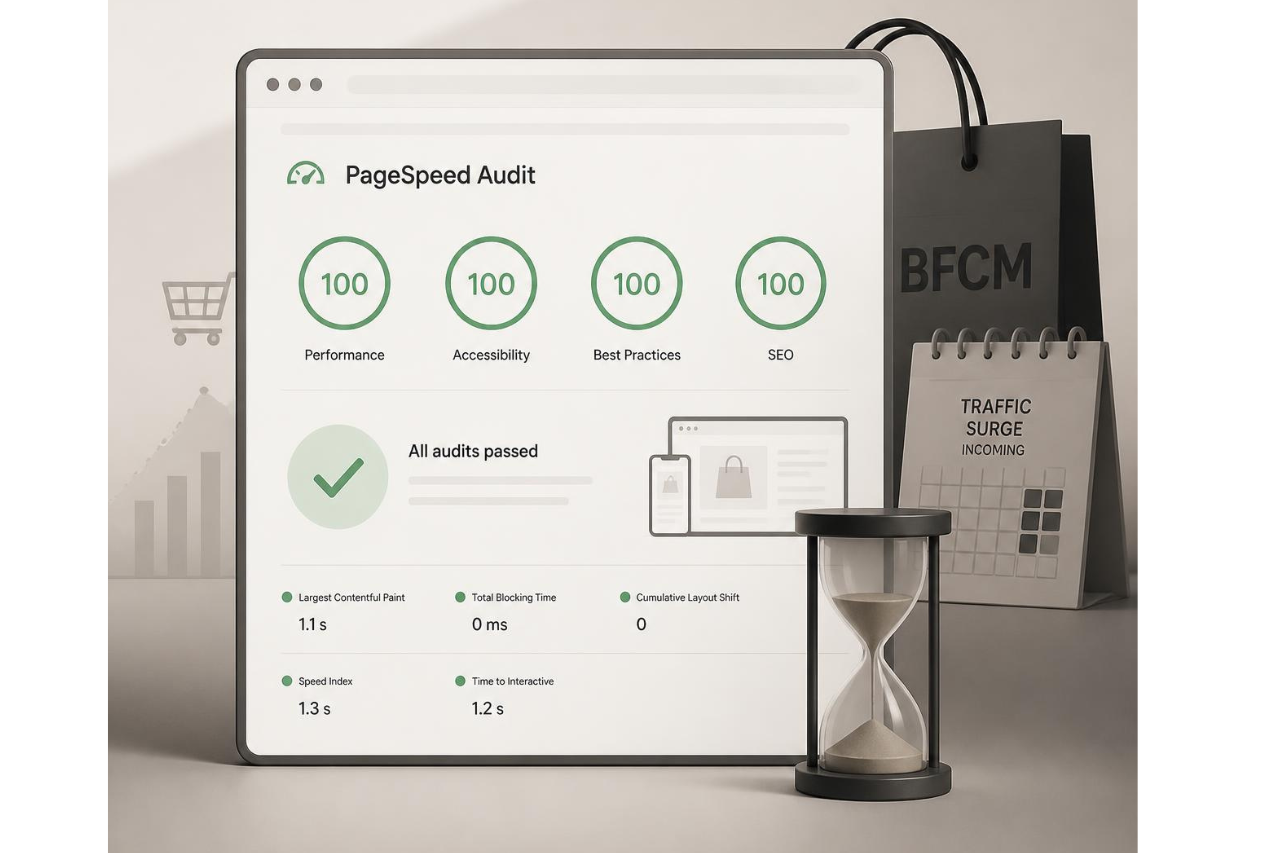
Now picture the same online store on Black Friday.
Your homepage is carrying a new hero banner. A countdown timer is ticking. Retargeting pixels are firing. Shoppers are opening product pages on their phones while a dozen other apps compete for attention in the background.
That passing grade may not survive the change in conditions.
Most speed tests show you how your store performs in a relatively clean environment. That is useful, but it can also create false confidence. It is the digital equivalent of testing a car on an empty road and assuming you know how it will handle rush hour.
We tested 1,237* real Shopify stores both ways, unthrottled and throttled, to measure how large that gap actually is. The result should concern any merchant heading into Black Friday and Cyber Monday:
85.3% of the stores we tested performed noticeably better unthrottled than throttled.
In other words, the vast majority were being judged on the easier version of the test.
*Methodology: We tested 1,237 live Shopify stores using Google Lighthouse, comparing each store’s default (unthrottled) result against Lighthouse’s built-in throttled network and CPU simulation. This is lab data, not real-user field data, so it reflects simulated conditions rather than confirmed real-world device or network behavior.
The test that can give you false confidence
A standard unthrottled speed test measures your store under favorable conditions, with no artificial limits on network speed or processing power. Think of it as a best-case baseline.
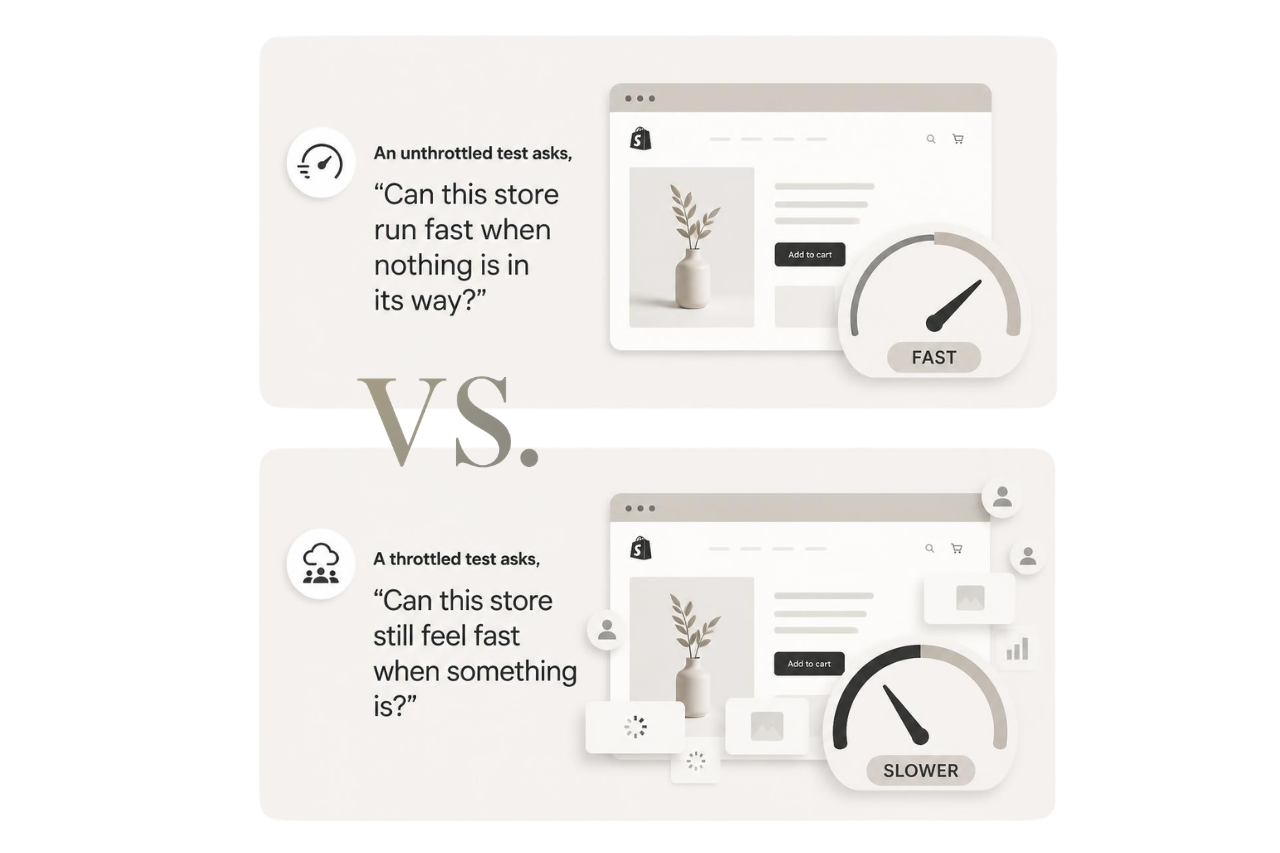
A throttled test deliberately restricts those resources to simulate a slower, more constrained browsing experience, closer to real-world conditions where connections vary, devices differ, and scripts compete for processing power.
The distinction is simple:
- An unthrottled test asks, “Can this store run fast when nothing is in its way?”
- A throttled test asks, “Can this store still feel fast when something is?”
Only one of those questions resembles BFCM (Black Friday Cyber Monday).
The gap between the two results is not a technical footnote. It is the gap between “my store looks ready” and “my store has actually been tested under pressure.”
What Core Web Vitals measure
To understand the results, it helps to know what the three Core Web Vitals are actually measuring. You do not need to memorize the terminology. Each metric corresponds to a frustration shoppers recognize immediately.

Largest Contentful Paint (LCP)
“Why is the main image still loading?”
LCP measures how long it takes the largest visible element on the page, usually a hero image or product photo, to appear. It is the metric most people have in mind when they say a page “loads slowly.”
Interaction to Next Paint (INP)
“Did that button work?”
INP measures how quickly the page responds after someone clicks, taps, or types. A slow INP is the pause after a shopper selects a variant or opens the cart drawer, the moment when they wonder whether the store registered the action at all.
Cumulative Layout Shift (CLS)
“I clicked the wrong thing because the page moved.”
CLS measures how much the page jumps while loading. It captures the maddening experience of reaching for Add to Cart just as a banner or image appears and pushes the button somewhere else.
A store must pass all three metrics at once to meet Google’s standard. Passing two out of three does not count.
Why BFCM makes the problem harder
Black Friday and Cyber Monday do not simply bring more shoppers. They often bring a heavier version of the store.
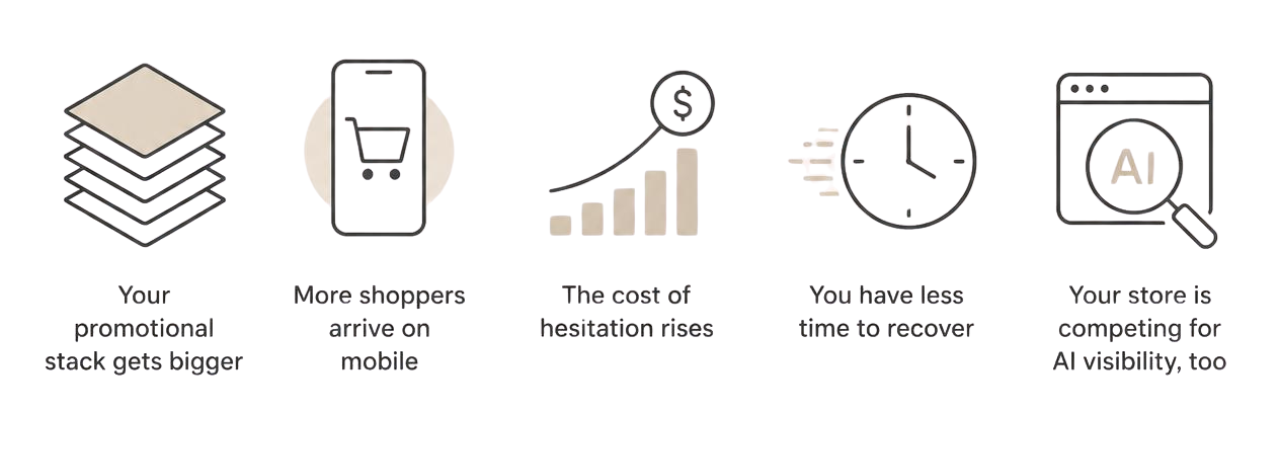
1. Your promotional stack gets bigger
BFCM is when merchants add countdown timers, urgency banners, pop-ups, gift widgets, extra tracking pixels, and new campaign tags. Each addition may seem harmless on its own. Together, these third-party scripts can create a page that asks the browser to do far more work at exactly the wrong time.
Retargeting and analytics scripts were among the biggest performance offenders in our research. They can add network requests and JavaScript performance costs long after the page first appears. The irony is hard to miss: the tools added to capture more revenue can make the buying experience slower.
2. More shoppers arrive on mobile
BFCM consistently skews more mobile than an average shopping day. A quick test on a modern laptop and fast Wi-Fi says little about mobile performance for a shopper browsing on a phone, on the go, with an inconsistent connection.
If your test conditions do not resemble that shopper’s conditions, your score is answering the wrong question.
3. The cost of hesitation rises
On a quiet Tuesday, a sluggish product page is frustrating. During BFCM sale, that same delay happens in the highest-traffic, highest-intent, most competitive shopping window of the year.
Your visitor may have several other tabs open. If your page stalls after a tap or your product image takes too long to appear, they do not need to wait. They can simply move to the next tab, raising bounce rate and reducing the chance that the visit becomes a sale.
That is why page speed and conversion rate belong in the same BFCM conversation. A fast page cannot guarantee a purchase, but a slow one introduces friction before the shopper has even had a chance to decide.
4. You have less time to recover
Performance problems are rarely fixed with one switch. You need time to identify the cause, test a change, and confirm that the fix did not break something else.
Launch week is a terrible time to begin that process.
5. Your store is competing for AI visibility, too
BFCM discovery is no longer limited to traditional search results, ads, and social feeds. Shoppers are increasingly using AI-powered search experiences to compare products, research gifts, and narrow down what to buy.
Speed is not a guaranteed shortcut to appearing in an AI-generated answer. But AI discovery still depends on pages that can be accessed, crawled, understood, and delivered reliably.
A storefront weighed down by scripts, delayed content, or technical instability can make that process harder—and create a poor experience for shoppers who do arrive through an AI recommendation.
During BFCM, visibility is only half the battle. If an AI assistant surfaces your product but the shopper lands on a slow, shifting page, the recommendation has done its job and the storefront has not.
What is riding on those seconds
Shopify’s BFCM weekend has grown every year for the last several years, consistently by more than 24% year over year, even through inflation and shifting consumer confidence.
The most recent Black Friday and Cyber Monday weekend produced billions of dollars in sales across Shopify merchants, with peak sales measured in the millions of dollars per minute.
That volume runs through infrastructure Shopify has spent years hardening. It also runs through millions of individual storefronts, each with its own theme, app stack, scripts, media, and accumulated technical debt.
That is why the gap between “looks fine” and “holds up” matters more during BFCM than on a quiet Tuesday. The slow page costs visitors at the precise moment they are most ready to buy.
Want a practical plan for preparing your store? Read our 7 tips for Shopify speed optimization before Black Friday and the holiday rush.
Shopify can handle BFCM. Can your storefront?
Shopify prepares extensively for BFCM. It runs continuous load and stress testing on its platform, including simulated flash-sale traffic against representative test shops. That work helps ensure the core infrastructure such as servers, checkout, and CDN can withstand enormous demand.

But Shopify’s testing stops where your storefront customization begins.
It does not test:
- your Shopify theme
- your particular mix of apps
- the marketing scripts your team installed
- the oversized image uploaded yesterday
- the promotional widget scheduled to go live on Friday morning
Those layers sit on top of Shopify’s infrastructure.
So these are two different claims:
- “Shopify can handle Black Friday traffic.”
- “My store can handle Black Friday traffic.”
The first may be true. Our data suggests that many merchants have not properly tested the second.
See the harder version of your store
You do not need an enterprise performance team to run a more realistic check. Start with these free tools.
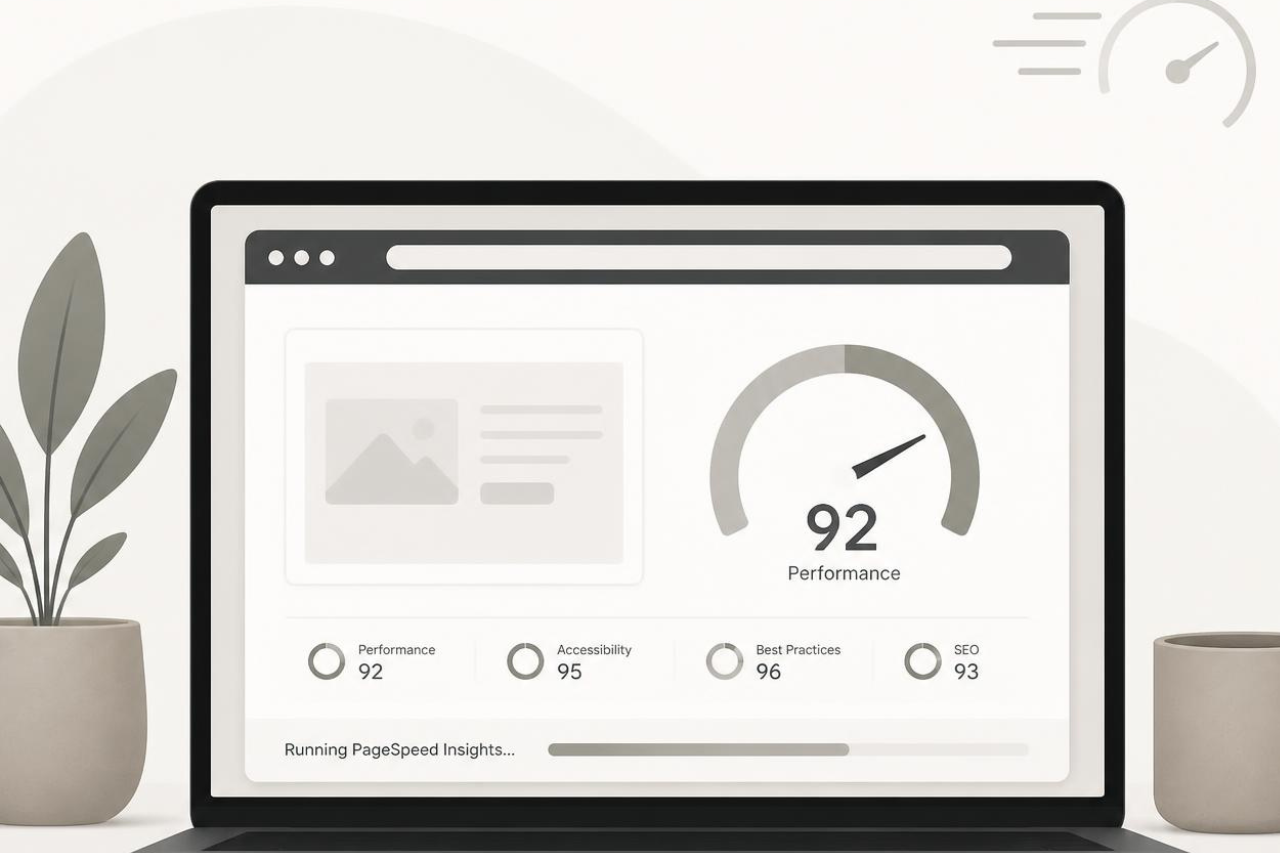
Google PageSpeed Insights
Go to PageSpeed Insights, enter your store URL, and run the test. Its results use a throttled, mobile-oriented lab simulation.
Focus on the Mobile view and inspect the individual Core Web Vitals reported for the page, including LCP, INP, and CLS when field data is available. Do not rely only on the single score at the top; an average-looking overall result can conceal one weak metric.
GTmetrix
Go to GTmetrix, enter your URL, and select a test location and device profile. Its waterfall view shows every request made by the page, helping you identify the image, app, or script creating the delay.
Chrome DevTools
Open your store in Chrome:
- Right-click, choose Inspect
- Open the Network tab.
- Change the dropdown from No throttling to a slower profile, then reload the page.
This does not produce an official score, but it lets you experience the difference yourself. Click through the page like a shopper: select a variant, open the cart, dismiss a pop-up, and watch for delays or movement.
Do not test only the homepage
Your homepage may be the front door, but it is not the entire shopping journey.
Run the same checks on:
- your homepage
- your highest-traffic collection page
- your best-selling product page
- your cart or cart drawer
- the path into checkout
Test the actions that matter, not only the page load. Can a shopper choose a size without hesitation? Does the cart respond immediately? Does content shift just as they try to tap?
That is where a technically acceptable score becomes a visibly good, or visibly frustrating, experience.
Technical fixes worth discussing with your developer
A speed report tells you where the experience is struggling. The next step is identifying what is creating the delay. These are some of the highest-value areas to investigate with your developer or performance partner.
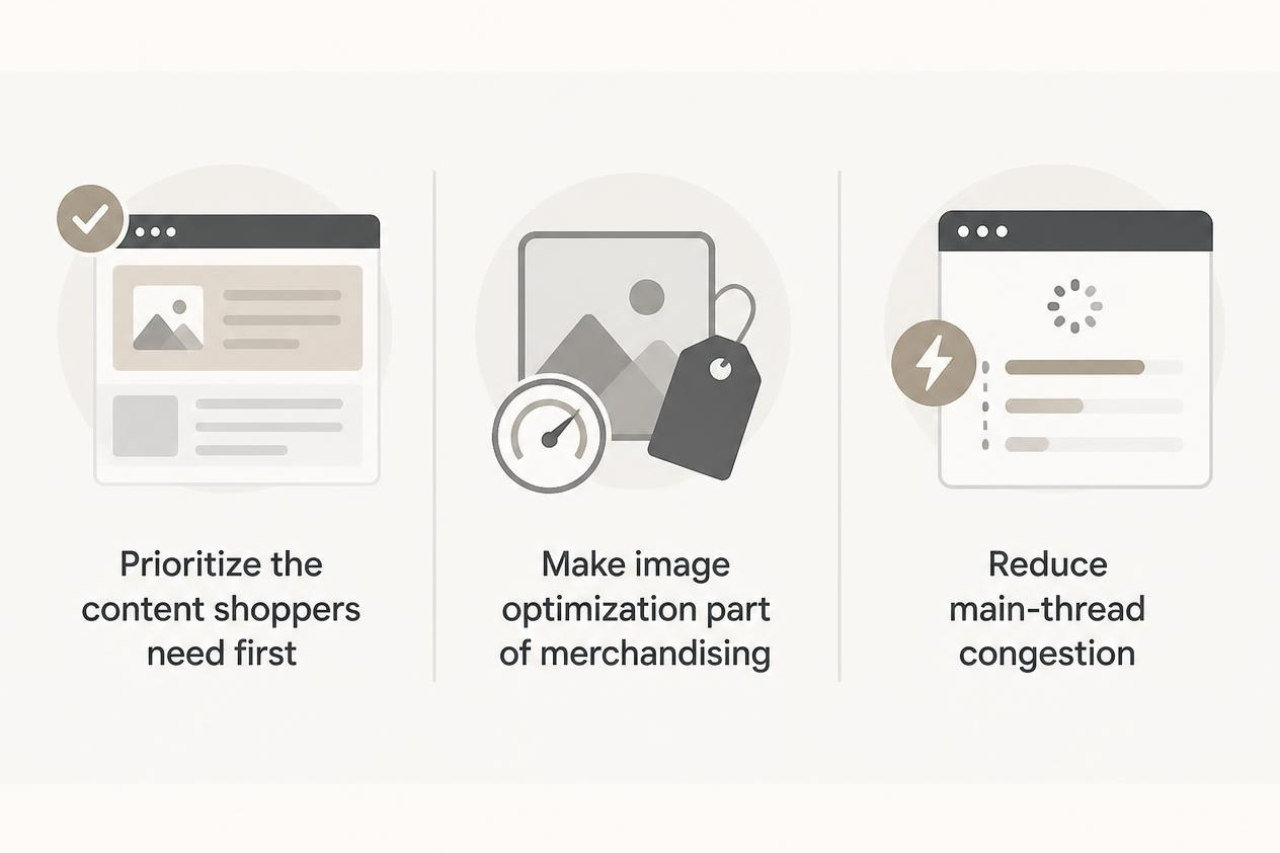
Prioritize the content shoppers need first
The browser should not treat every resource as equally urgent. Critical CSS can deliver the styles needed for the first visible screen without making shoppers wait for the entire stylesheet.
A carefully applied fetchpriority hint can tell the browser that a genuine LCP image.
Use preconnect selectively when the page must contact an important external origin early. Preload fonts only when those font files are essential to the first view; preloading too many resources can create more competition rather than less.
Make image optimization part of merchandising
Large product and campaign images are common LCP offenders. Image optimization means using appropriate dimensions, efficient formats, and compression that preserves the detail shoppers need without making them download unnecessary weight.
Use lazy loading for images farther down the page, but not automatically for the main hero or product image. Delaying the page’s most important visible image can make LCP worse.
Reduce main-thread congestion
Heavy JavaScript can prevent the browser from responding even after the page looks ready. TBT (Total Blocking Time) is a useful lab diagnostic for finding long tasks that occupy the main thread; INP reflects responsiveness experienced by real users when field data is available.
Defer scripts that are not necessary for the first interaction, and remove duplicate or unused scripts rather than merely loading all of them later. Pay particular attention to analytics, retargeting, chat, reviews, pop-ups, and other third-party scripts that may be competing with the variant selector and cart drawer.
The goal is not to chase every technical recommendation indiscriminately. It is to protect the product information, variant selection, and cart actions that move a BFCM shopper toward checkout.
A practical BFCM speed plan
- Establish the real baseline – Run a throttled, mobile-oriented test now. Save the results so you can compare them after each change.
- Audit the BFCM additions – Run an app audit covering every app, pixel, banner, countdown, pop-up, and promotion planned for the sale.
For each one, ask:- Does it directly support the campaign?
- Does another tool already do the same job?
- What happens to page speed when it is enabled?
- Can it load later, after the essential shopping experience is ready?
Every script added for the sale is a script the store must load during the sale.
- Re-test after every material change – A store that passed in September can fail in November, one reasonable app install at a time. Performance problems often come from accumulation rather than one dramatic mistake. Test, change, and test again.
- Fix the pages closest to revenue first – You do not need every forgotten page in the store to be flawless before BFCM. Start with the pages that carry the most traffic and buying intent: the homepage, top collection and product pages, cart, and checkout path.
- Set a launch freeze – Choose a point before the promotion when nonessential app installs and design changes stop. That gives your team time to test the final store shoppers will actually see, not a version that changes again an hour later.
The five-minute reality check before Black Friday and Cyber Monday
Open your best-selling product page on a phone and answer five questions:
- Does the main product content appear quickly?
- Can you select a variant without a pause?
- Does anything move while you are trying to tap?
- Does the cart open and update immediately?
- Does the experience still feel smooth on a slower connection?
If any answer is “no,” the green checkmark on your last speed report is not the end of the conversation. It is the beginning of a better test.
Test for the day you are preparing for
The purpose of performance testing weeks before BFCM is not to earn the prettiest score. It is to understand what a shopper will experience when the stakes are highest.
An unthrottled result tells you what your store can do under favorable conditions. A throttled result reveals how quickly that confidence disappears when resources become constrained and the storefront becomes more complex.
With the BFCM rush approaching, do not ask whether your store can pass the easy test.
Ask whether it can still sell when the easy conditions are gone.
Fix your Shopify store speed issues with Hyperspeed
Hyperspeed helps address the problems uncovered by your speed test through image optimization, critical CSS, lazy loading, code minification, script deferral, and LCP preloading.
Run a throttled test, install Hyperspeed then optimize, and test the same pages again under the same conditions.
Compare how fast your store is to a huge sample of other stores. Get benchmarked and find out where you can improve your speed to make more sales. How fast is your Shopify store?
FAQ
How should I run a Shopify site BFCM speed check?
Run PageSpeed Insights and WebPageTest on your homepage, top product page, cart drawer, and checkout path using mobile throttling. Record Core Web Vitals, TTFB (Time to First Byte), and load time. Repeat the same tests after every Shopify theme, app, or campaign change. Compare mobile and desktop results.
Which Core Web Vitals matter most before BFCM?
Prioritize LCP (Largest Contentful Paint), INP (Interaction to Next Paint), and CLS (Cumulative Layout Shift). A good BFCM result requires fast main content, responsive controls, and a stable layout. Test the variant selector and cart drawer, not just the initial page load. Use real devices when possible.
How can I reduce the performance impact of Shopify apps?
Start with an app audit and remove duplicate or unused third-party scripts. Improve JavaScript performance, defer scripts that are not needed immediately, and use critical CSS. Re-test TBT (Total Blocking Time), INP, and mobile performance after each change to identify regressions. Keep a rollback note for each edit.
Which image and loading optimizations should I use?
Use image optimization, responsive dimensions, and compression for campaign and product media. Apply lazy loading below the fold, but not to the main LCP image. Use fetchpriority carefully for that image, preconnect only to essential origins, and preload fonts only when required above the fold.
Why can a passing Shopify speed score be misleading before BFCM?
A passing score is only a baseline because BFCM adds promotional apps, third-party scripts, mobile shoppers, and heavier media. Run a throttled stress test before launch, then monitor page speed, checkout speed, bounce rate, and conversion rate. Shopify Plus does not remove storefront-level bottlenecks.