Alexander Lam

Learn how to identify and fix render-blocking resources on Shopify stores using critical CSS, defer JavaScript, async loading, and asset optimization techniques to improve Core Web Vitals, PageSpeed Insights scores, and overall storefront performance.
Key Takeaways
→ Render-blocking resources delay visible content by forcing the browser to process CSS and JavaScript before rendering the page.
→ Techniques like inline critical CSS, defer JavaScript, async JavaScript, and removing unused code help improve Shopify performance and Core Web Vitals.
→ Third-party apps, tracking pixels, and oversized theme assets are some of the most common causes of render-blocking resources on Shopify stores.
What Are Render-Blocking Resources?
Render-blocking resources are CSS and JavaScript files that prevent the browser from displaying visible content until those files are downloaded and processed. When someone visits your Shopify store, the browser begins parsing the HTML and building the page. But if it encounters blocking stylesheets or scripts early in the load process, rendering pauses until those resources finish loading.

- CSS is render-blocking by default because the browser needs styling information before it can properly paint the layout.
- JavaScript can be even more disruptive. A standard script tag can stop HTML parsing entirely while the browser downloads and executes the file.
- Large scripts, third-party apps, tracking pixels, and oversized stylesheets can all delay initial render of product images, headlines, navigation, and add-to-cart buttons.
The goal is to prioritize essential resources first so the browser can render visible content faster.
How Render-Blocking Resources Affect the Critical Rendering Path
The Critical Rendering Path (CRP) is the browser’s process for turning page code into visible content. It begins by downloading the HTML, then discovering CSS and JavaScript files, building the DOM and CSSOM, calculating layout, and finally rendering pixels to the screen.

Render-blocking resources slow this process down because the browser cannot safely continue rendering until certain files are processed.
- Stylesheets block rendering until the CSS is fully downloaded and parsed.
- Standard JavaScript files can block HTML parsing entirely while the browser downloads and executes the script.
As more blocking resources load early in the page request, the browser spends more time waiting before it can display anything useful to the shopper. This directly affects above-the-fold content, especially on mobile devices and slower connections where large CSS files, third-party scripts, and tracking pixels can delay the first visible paint by several seconds.
Minimizing render-blocking resources shortens the critical rendering path and improves metrics measured in PageSpeed Insights and Lighthouse.
Techniques like inline critical CSS, defer JavaScript, async JavaScript, and defer non-critical CSS help the browser prioritize visible content first instead of forcing shoppers to wait for unnecessary assets to finish loading.
Why Shopify Stores Struggle With Render-Blocking Resources
Shopify stores often struggle with render-blocking resources because themes, apps, tracking pixels, and third-party tools continuously add CSS and JavaScript to the storefront.

Many of these files are unnecessary for the initial page view, yet they still download, parse, and execute before shoppers can fully interact with the page.
The result is slower load times, worse PageSpeed Insights scores, and delayed rendering across mobile devices.
| Source | How It Creates Render-Blocking Resources |
| Theme CSS and JavaScript | Large theme bundles load globally, often including unused CSS and unused JavaScript. |
| Shopify apps | Apps inject additional scripts and stylesheets that frequently load synchronously. |
| Tracking pixels and GTM | Google Tag Manager, Meta Pixel, and TikTok Pixel add extra requests during the critical rendering path. |
| Fonts and external assets | Google Fonts and external libraries create additional blocking network requests. |
| Uncontrolled asset loading | Scripts and styles accumulate over time without proper defer JavaScript or async JavaScript handling. |
A Shopify store rarely becomes slow because of one file. It becomes slow because every app, script, and feature quietly joins the page load.
How to Identify Render-Blocking Resources in Shopify
Before making changes, identify which CSS and JavaScript files are actually delaying the initial render.
Tools like Google PageSpeed Insights, Lighthouse, Chrome DevTools, and WebPageTest can show which assets block rendering and how much delay they create.
Focus on resources that load early in the critical rendering path, especially files affecting above-the-fold content.
| Tool | What to Look For |
| Google PageSpeed Insights | Check the “eliminate render-blocking resources” audit and estimated time savings. |
| Lighthouse | Identify render-blocking CSS and JavaScript affecting performance metrics. |
| Chrome DevTools | Use the Network waterfall to see which files load before first paint. |
| Chrome DevTools Coverage | Find unused codes loading on the page. |
| WebPageTest | Analyze filmstrips and waterfall charts to spot delayed rendering. |
CSS optimization strategies for Shopify
CSS optimization helps reduce render-blocking resources by making the browser load only the styles needed for the initial render first, then loading the rest later.

The goal is not to remove important styling, because a broken storefront is not “optimized.” The goal is to prioritize critical CSS, defer non-critical CSS, and remove unused CSS where possible.
Inline critical CSS
Critical CSS is the styling needed to render above-the-fold content, such as the header, hero section, product title, price, and add-to-cart area. By placing inline critical CSS directly in the <head>, the browser can render visible content without waiting for the full stylesheet to download.
This helps the browser render above-the-fold content faster.
Defer non-critical CSS
After inline critical CSS is added, the remaining stylesheet can be loaded asynchronously. This keeps non-essential styles from blocking the first render.

This preload CSS rel=preload method tells the browser to fetch the stylesheet early without blocking rendering, then apply it once loaded.
Remove unused CSS
Shopify themes often load CSS for sections, templates, and features that are not used on the current page. Removing unused CSS reduces file size and parsing time, especially on product and collection pages.
Use Chrome DevTools Coverage to find unused CSS, then clean it carefully. Dynamic classes, cart drawers, popups, and app-injected elements may not appear during the first scan.
Minify CSS
Minify CSS to reduce transfer size by removing spaces, comments, and unnecessary characters. This will not solve render-blocking by itself, but it makes CSS files lighter and faster to download.
Load CSS only where needed
Use Shopify template logic to load styles only on the pages that need them.
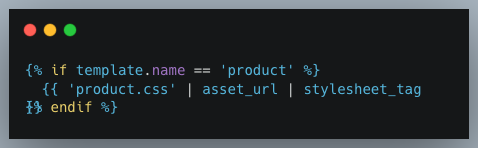
This prevents collection, blog, or account page styles from loading on every page for no reason.
| CSS optimization tactic | What it improves |
| Inline critical CSS | Faster above-the-fold rendering |
| Defer non-critical CSS | Shorter critical rendering path |
| Remove unused CSS | Smaller stylesheet payload |
| Minify CSS | Faster file download |
| Template-based loading | Less unnecessary CSS per page |
JavaScript optimization for Shopify
JavaScript optimization helps reduce render-blocking resources by controlling when scripts load, execute, and affect the page.
On Shopify, this matters because themes, apps, analytics tools, and third-party widgets often add scripts that compete with the browser’s ability to render above-the-fold content.
Defer JavaScript
Defer JavaScript for scripts that are needed for page functionality but do not need to run before the HTML finishes parsing. This lets the browser continue building the page while the script downloads in the background.
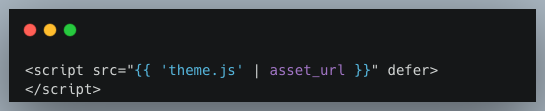
This is usually safer than async for theme scripts because deferred scripts keep their execution order.
Use async JavaScript for independent scripts
Async JavaScript is best for scripts that do not depend on other files and do not control important page functionality. Analytics, pixels, and some tracking scripts are common examples.

Because async scripts run as soon as they finish downloading, they should not be used for scripts that depend on execution order.
Remove unused JavaScript
Many Shopify stores load unused JavaScript from old theme features, disabled sections, sliders, popups, or apps that are no longer active. Use Chrome DevTools Coverage to find unused JavaScript and remove anything that is not needed on the current page.
Minify JavaScript
Minify JavaScript to reduce file size and improve download speed. It will not fix every performance issue, but it helps reduce the weight of scripts that still need to load.
Load JavaScript only where needed
Use template-based loading so scripts only appear on the pages that need them.
This prevents product-specific scripts from loading on collection, blog, or homepage templates.
| JavaScript optimization tactic | What it improves |
| Defer JavaScript | Prevents theme scripts from blocking HTML parsing |
| Async JavaScript | Loads independent scripts without blocking rendering |
| Remove unused JavaScript | Reduces unnecessary script weight |
| Minify JavaScript | Improves download speed |
| Template-based loading | Keeps page-specific scripts off unrelated templates |
How to Optimize Fonts Without Blocking Rendering
Font optimization helps prevent text delays, layout shifts, and extra render-blocking requests. On Shopify, this usually means reducing dependency on external font files, loading only the fonts you actually use, and making sure text stays visible while fonts load.
Self-host fonts
Google Fonts can create extra requests because the browser first downloads the font stylesheet, then downloads the font files. Self-hosting fonts through Shopify assets reduces that external dependency and gives the browser a cleaner loading path.
Use font-display: swap
Add font-display: swap to your font-face rules so text appears immediately with a fallback font while the custom font loads.
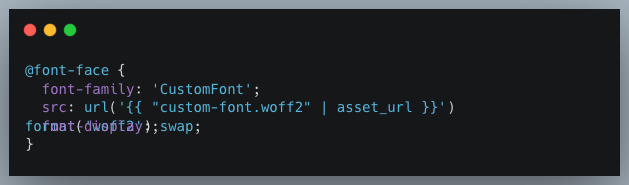
Preload critical fonts
If a font is used in first paint, preload it so the browser discovers it earlier.

Only preload fonts that are used immediately. Preloading every font weight can compete with more important resources.
Limit font families and weights
Each font family and weight adds another file request. Most Shopify stores only need one or two font families and two or three weights. Removing unused font weights reduces page weight and helps the browser render text faster.
| Font optimization tactic | What it improves |
| Self-host fonts | Reduces external font requests |
| Use font-display: swap | Prevents invisible text during loading |
| Preload critical fonts | Loads above-the-fold fonts earlier |
| Limit font weights | Reduces unnecessary font files |
Shopify-specific optimization strategies
Shopify optimization works best when assets load only where they are needed. Instead of forcing every page to carry the same CSS and JavaScript, use Shopify’s theme structure to control scripts, styles, and app embeds by template, section, or feature.
Load assets by template
Use Liquid conditions to load CSS or JavaScript only on relevant page types.
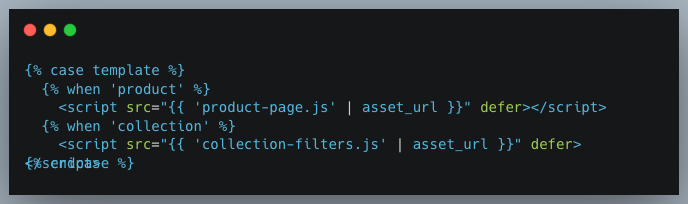
This prevents product-specific assets from loading on collection, blog, or homepage templates.
Load scripts by section
If a feature only appears in one section, load its script inside that section instead of globally. For example, a homepage slider script should not load on every product page.
Review app embeds
Go to Shopify Admin, then Online Store, Themes, Customize, and App Embeds. Disable embeds that are not actively used. For essential apps, check whether they support async JavaScript, defer JavaScript, or manual snippet placement.
Reduce dependency chains
Some themes and apps rely on older libraries like jQuery, which can create dependency chains where one script must load before another. Reducing these dependencies helps shorten the critical rendering path and lowers the risk of render-blocking resources.
| Shopify optimization tactic | What it improves |
| Template-based loading | Reduces redundant scripts and styles |
| Section-based loading | Keeps feature scripts off unrelated pages |
| App embed cleanup | Removes unnecessary third-party scripts |
| Dependency reduction | Shortens script chains and improves load order |
Third-Party Scripts: The Biggest Shopify Performance Problem
Third-party scripts are often the biggest source of render-blocking resources on Shopify. Apps, pixels, review widgets, chat tools, popups, and tracking platforms can all add CSS and JavaScript to the storefront, sometimes before the browser has finished rendering visible content.
Audit every app
Review all installed apps and remove anything that is no longer active, useful, or tied to revenue. Disabled features can sometimes leave scripts behind, so check the storefront code and Chrome DevTools Network tab after removing or disabling apps.
Delay non-critical scripts
Not every third-party script needs to load immediately. Chat widgets, heatmaps, popups, and some marketing tools can often be delayed until after the first interaction, scroll, or page load.
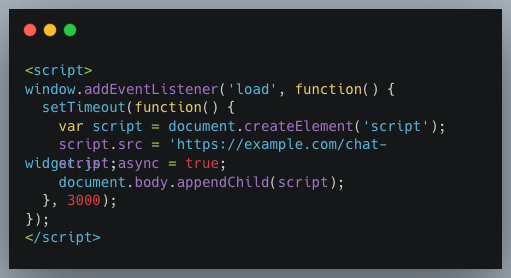
This keeps non-essential scripts out of the initial critical rendering path.
Control tracking scripts
Google Tag Manager, Meta Pixel, TikTok Pixel, and similar tools can trigger several additional requests. Keep only the tags you actively use, avoid firing every tag on every page, and use page-specific triggers where possible.
Use manual placement when available
Some Shopify apps let you disable automatic injection and place their scripts manually. This gives you more control over whether the script loads with async JavaScript, defer JavaScript, or only on selected templates.
| Third-party optimization tactic | What it improves |
| App audit | Removes unnecessary scripts and styles |
| Delayed loading | Keeps non-critical scripts off the initial render |
| Tag cleanup | Reduces tracking-related requests |
| Manual script placement | Improves control over async defer scripts |
Managing render-blocking resources manually across themes, apps, and third-party scripts can become difficult as a Shopify store grows. Performance optimization tools like Hyperspeed can help automate parts of the process, including script deferral, asset optimization, and unused code reduction, without requiring constant manual adjustments.
How to Verify Your Render-Blocking Fixes
After changing CSS, JavaScript, fonts, or third-party scripts, perform a Shopify site audit again to confirm the fixes actually improved performance.

Check PageSpeed Insights and Lighthouse
Run the same page through Google PageSpeed Insights before and after the changes. Look for improvements in the “eliminate render-blocking resources” audit, along with FCP, LCP, and overall performance score.
Use Lighthouse in Chrome DevTools for local testing, but run more than one test. Scores can vary between audits.
Review Chrome DevTools
Open Chrome DevTools and check the Network waterfall. Render-blocking resources should either load later, load asynchronously, or disappear from the early critical rendering path.
Use the Coverage tab to confirm whether unused CSS and unused JavaScript were reduced.
Test key Shopify pages
Do not only test the homepage. Check product pages, collection pages, cart pages, and any landing pages that drive traffic or conversions. Each template can load different scripts, styles, and app embeds.
Validate store functionality
After using defer JavaScript, async JavaScript, or delayed script loading, test the actual shopping experience. Check product images, variants, add-to-cart buttons, filters, cart drawer, popups, review widgets, and checkout flow.
Common Mistakes When Fixing Render-Blocking Resources
Performance optimization can improve load times significantly, but the wrong changes can also break layouts, scripts, or storefront functionality.

Deferring the wrong scripts
Not every script should use defer JavaScript or async JavaScript. Some scripts depend on execution order or need to run immediately for critical functionality. Deferring the wrong file can break product galleries, cart drawers, filters, or app integrations.
Removing CSS too aggressively
Removing unused CSS without proper testing can break dynamic elements like popups, mobile menus, cart drawers, or app components that only appear after interaction.
Loading too many assets globally
Many stores load scripts and styles across every template even when they are only needed on one page type. Product page assets should not load on blogs, and homepage sliders do not need to exist on collection pages.
Chasing Lighthouse scores only
A perfect Lighthouse score does not automatically mean a fast or stable store. Real-world mobile performance, Core Web Vitals field data, and actual user experience matter more than lab scores alone.
Ignoring mobile testing
Most Shopify traffic comes from mobile devices, where slower CPUs and weaker network conditions make render-blocking resources far more noticeable. Always test on real mobile devices and connections instead of relying only on desktop audits.
Building a Faster Shopify Store
Render-blocking resources slow down more than performance scores. They delay visible viewport content, increase bounce rates, and make the storefront feel unresponsive before shoppers even interact with the page.

The goal is not to remove every stylesheet, script, or app from your Shopify store. The goal is to minimize render-blocking resources by prioritizing critical CSS, using defer JavaScript and async JavaScript correctly, reducing unused CSS and unused JavaScript, and controlling how third-party assets load.
Performance optimization also is not a one-time cleanup project. New apps, theme updates, tracking scripts, and marketing tools can gradually reintroduce render-blocking issues over time. Regular audits with PageSpeed Insights, Lighthouse, and Chrome DevTools help keep the storefront fast and stable as the store grows.
A faster Shopify store improves more than technical metrics. It creates a smoother shopping experience, improves Core Web Vitals, and helps shoppers reach products faster without waiting for half the internet to finish loading first.
Reduce render-blocking resources without breaking your Shopify store
Hyperspeed helps Shopify stores optimize CSS, defer JavaScript, reduce unused code, and improve Core Web Vitals with performance-focused automation designed specifically for ecommerce storefronts.
Compare how fast your store is to a huge sample of other stores. Get benchmarked and find out where you can improve your speed to make more sales. How fast is your Shopify store?
FAQ
What are render-blocking resources?
Render-blocking resources are CSS and JavaScript files that delay visible content from rendering until the browser downloads and processes them. Large stylesheets, third-party apps, and tracking scripts can interrupt the critical rendering path (CRP) and significantly slow above-the-fold content on Shopify stores.
How do you eliminate render-blocking resources on Shopify?
To eliminate render-blocking resources, prioritize critical CSS, use inline critical CSS for above-the-fold content, defer non-critical CSS, and apply defer JavaScript or async JavaScript where appropriate. Removing unused CSS and unused JavaScript further reduces blocking requests and improves load speed.
Which tools help identify render-blocking resources?
Google PageSpeed Insights, Lighthouse, Chrome DevTools, and WebPageTest help identify render-blocking resources. Use waterfall charts, Coverage reports, and the “eliminate render-blocking resources” audit to locate blocking CSS, unused code, and heavy JavaScript files affecting initial render speed.
What is the difference between defer and async JavaScript?
Defer JavaScript downloads scripts in parallel but waits to execute them until HTML parsing finishes, preserving execution order. Async JavaScript executes immediately after download, making it better for independent scripts like analytics, tracking pixels, and third-party marketing tools.
How can CSS optimization improve Shopify performance?
CSS optimization improves Shopify performance by reducing blocking requests and helping the browser render visible content faster. Techniques like minify CSS, preload CSS (rel=preload), media queries, loadCSS (library), and removing unused CSS help shorten page load times and improve Core Web Vitals.